How to Link Your Gaijin Account to GeForce NOW for Faster Logins
Introduction
Less typing, more tanking. With GeForce NOW’s new Gaijin single sign-on integration, you can jump straight into battles without juggling passwords. This guide walks you through linking your Gaijin.net account to GeForce NOW, enabling one-click logins from any device. The process takes just a few minutes and works across PC and Mac, letting you focus on gaming rather than credentials. Whether you play War Thunder or other Gaijin titles, this step-by-step approach ensures a seamless connection.
What You Need
- An active GeForce NOW membership (Free, Priority, or Ultimate)
- A Gaijin.net account (free to create at gaijin.net)
- The GeForce NOW app installed on your PC or Mac (download from geforcenow.com)
- A stable internet connection (minimum 15 Mbps for 720p, 25 Mbps for 1080p)
- Any supported Gaijin game already purchased or added to your library (e.g., War Thunder)
Step-by-Step Guide
Step 1: Open the GeForce NOW App
Launch the GeForce NOW application on your PC or Mac. Ensure you’re signed in with your GeForce NOW account. If you don’t have the app, download it from the official NVIDIA website. The app provides the interface to manage your game libraries and connect third-party accounts like Gaijin.
Step 2: Navigate to Settings
Click on your profile icon or the gear icon in the top-right corner to open Settings. This menu contains account management options, including platform linking. The layout is consistent across Windows and macOS versions.
Step 3: Find the “Connections” Section
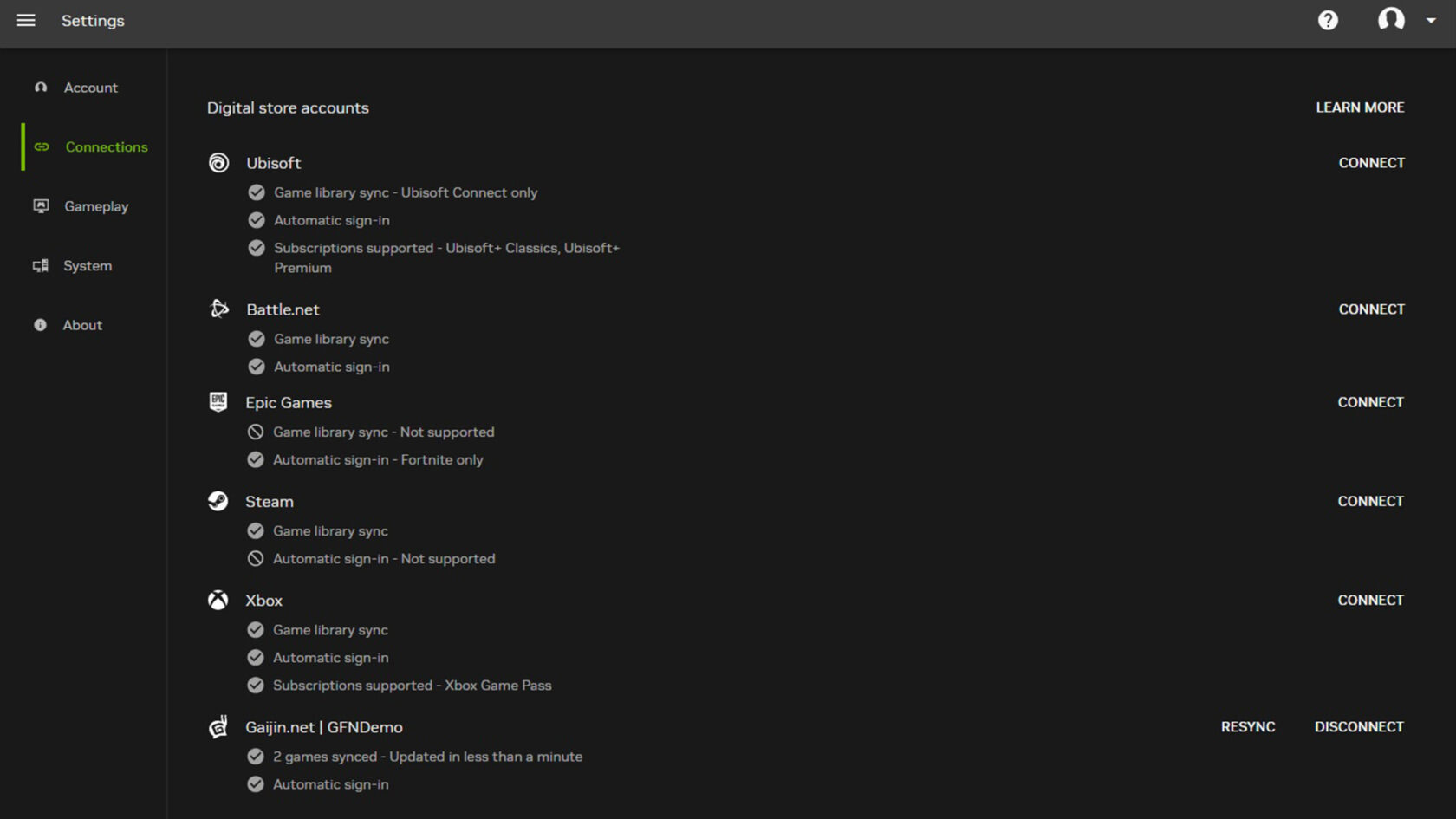
In the Settings menu, locate the Connections tab (sometimes labeled “Account Linking” or “Connected Accounts”). This section lists all supported services you can link to GeForce NOW, including Xbox, Ubisoft Connect, and now Gaijin.
Step 4: Click on Gaijin
Scroll down or look for the Gaijin logo (a stylized ‘G’). Click the Connect button next to it. A new browser window or in-app dialog will open, prompting you to authorize the link. If multiple Gaijin accounts exist, choose the one you use for gaming.
Step 5: Sign In to Gaijin.net
Enter your Gaijin.net email and password. Optionally, enable two-factor authentication if you have it set up. After signing in, you’ll see a confirmation screen asking for permission to connect. Click Allow to proceed. This step ensures Gaijin grants GeForce NOW access to your game library.
Step 6: Confirm Linking
Once you allow access, return to the GeForce NOW app. A green checkmark should appear next to the Gaijin entry in Connections, indicating the link is active. You can test it by restarting the app.
Step 7: Launch a Supported Gaijin Game
From your GeForce NOW game library, select a Gaijin title like War Thunder. Instead of being prompted to log in separately, the game will automatically authenticate via the saved connection. This eliminates password entry on every launch. For Ultimate members, games also benefit from NVIDIA GeForce RTX 5080 performance, delivering higher frame rates and reduced latency across nearly the entire library.
Step 8: Enjoy Faster Logins Everywhere
Once linked, the single sign-on works on any device where you install GeForce NOW — PC, Mac, Android, or NVIDIA Shield. You no longer need to type your Gaijin credentials each time; just click Play and dive into the action. The same convenience extends to other linked platforms like Xbox and Ubisoft Connect.
Source: blogs.nvidia.com
Additional Games Available This Week
Alongside the Gaijin integration, seven new games join GeForce NOW this week. Members can stream them on both Ready-to-Play and Install-to-Play titles, with Ultimate members enjoying RTX 5080 power. The lineup includes:
- Dead as Disco (New release on Steam, May 5) — a rhythm brawler where every punch syncs to the beat.
- HUNTDOWN: OVERTIME (New release on Steam, May 7)
- Nuclear Option (Steam)
- Sintopia (Steam)
- Kiln (Steam and Xbox, available on Game Pass)
- Hotel Architect (Steam)
- PowerWash Simulator 2 (Xbox, available on Game Pass)
Check these out after setting up your Gaijin connection for a seamless gaming session.
Tips for a Smooth Experience
- Double-check account region: Ensure your Gaijin.net account region matches your GeForce NOW server region to avoid library mismatches.
- Log out of all devices if issues arise: If the link fails, sign out of Gaijin on all browsers and try again. Sometimes cached sessions interfere.
- Link before playing: Complete the linking step before launching any Gaijin game for the first time to prevent duplicate login prompts.
- Use the same email: For easiest linking, use the same email address for both GeForce NOW and Gaijin.net. While not required, it reduces confusion.
- Upgrade to Ultimate for RTX 5080: If you’re a heavy gamer, consider Ultimate membership to unlock the full performance potential of games like War Thunder.
- Report broken links: If the connection stops working after an update, visit the NVIDIA support page or contact Gaijin support.
Conclusion
Linking your Gaijin account to GeForce NOW takes less than five minutes and saves you from repeated logins. With single sign-on, you spend more time gaming and less time typing. Whether you’re dogfighting in War Thunder or grooving in Dead as Disco, this integration removes friction. Now get out there — and less typing, more tanking.